Last Updated 05.19.2024
Video Stream Setup
Video Stream Requirements
1. Supported Websites:-- Owncast
-- Twitch
2. Download OBS Studio or another alternative streaming software.
Video Stream Setup (OBS Studio, Streamlabs)
1. Open OBS Studio and go to "Settings".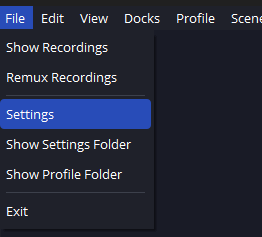
2. Go to "Stream" and type in your stream information. You may need to use "Custom...".

3. Go to "Video" and set your "Base Resolution" and "Output Resolution" to one of the following options. Other resolutions may prevent the stream from loading.
-- 1080p: 1920 x 1080
-- 720p: 1280 x 720
-- 480p: 852 x 480
-- 360p: 480 x 360
4. Set your "Common FPS Values" to 60.
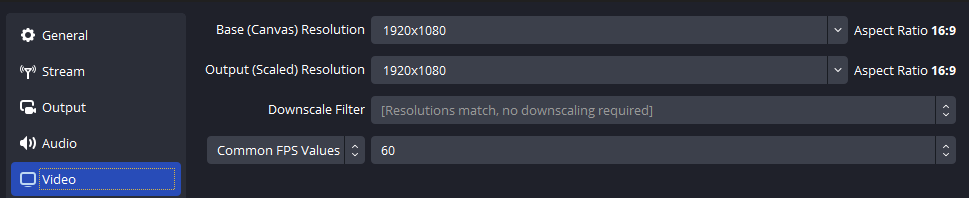
NOTE: Lower Resolutions are recommended for players with internet speeds below 100mbps. Only Twitch Affiliates are allowed to change their "Video Stream Quality" in-game at this time. Other streaming services not compatible.
5. (OPTIONAL) Go to "Output" and set your "Audio Bitrate" to 320 for the best quality.
6. Open R.A.V.E, Go to "Host Event", Then input your "CUSTOM STREAM" profile URL. (e.g., https://twitch.tv/ravegameofficial).

NOTE: Stream must be Live before launching the Event in the game.
NOTE: Disconnected streams require a new Event to be started, it does not automatically refresh if you reconnect.